Wrike Reviews & Pricing

What Is Wrike?
Industry Specialties: Serves all industries
Wrike is a cloud-based software that helps users manage distributed projects and promotes team collaboration. It offers a wide-range of templates and customizations that help your team keep priorities aligned and speed up project execution.
Our research team scored Wrike a 92 based on 119 feature requirements, tying it for first with ClickUp on our project management leaderboard. Apart from bagging best in class overall, Wrike also leads the pack in platform features and security, project planning, and scheduling and time tracking management.
Users liked Wrike’s real-time accessibility via native apps, flexibility to customize capabilities to their specific needs, and added visibility using live dashboards and the visual timeline. However, they mentioned premium features are paywalled and that there is a steep learning curve at the start.
Wrike has a free plan, with paid plans starting at $10 per user per month.
Our Research Process for Wrike
I signed up for a free trial to see what it’s all about. Luckily, I was able to snag access to the Pinnacle plan, their premier offering “for complex work needs.” During my two-week trial period, I created an entire space with a dummy project for our content team. I set up our workflow, complete with automations, custom fields, task transitions and request forms.
No software is completely intuitive, so I used Wrike’s help center whenever I got stuck (sidenote: I loved the looped gif demos). Our internal data scores helped me identify areas where Wrike stood out compared to ClickUp, monday.com, Zoho Projects and Asana. Additionally, I relied on user insights from software review sites and reached out to users personally to zero in on the standout (and not-so-standout) features.


Wrike Pricing
Based on our most recent analysis, Wrike pricing starts at $10 (Per User, Monthly).
- Price
- $$$$$
- Starting From
- $9.80
- Pricing Model
- Per User, Monthly
- Free Trial
- 14 Days (Request for Free)
Training Resources
Wrike is supported with the following types of training:
- Documentation
- In Person
- Live Online
- Videos
- Webinars
Support
The following support services are available for Wrike:
- Phone
- Chat
- FAQ
- Forum
- Help Desk
- Knowledge Base
- Tickets
- Training
- 24/7 Live Support
Wrike Benefits and Insights
Key differentiators & advantages of Wrike
- Allocate Resources To Projects Accurately: Our analysts rated Wrike a 97 for project planning and scheduling, head and shoulders above ClickUp (89), monday.com (89), Asana (82) and Zoho Projects (77). Apart from the multiple project views and baselines, I thought Wrike’s Booking feature for resource planning was a killer feature. It essentially allows you to reserve blocks of time in a project for assignees or job roles using the estimated effort it takes.
- Track Schedules and Workloads: Wrike scored a 98 for time tracking and management, edging out Zoho Projects (94), monday.com (91), ClickUp (71) and Asana (50). I liked that you can estimate the effort it takes for a task, which is automatically recalculated if it takes more or less time, and lock time entries (great for remote work). You can also create a global calendar to track overtime, PTO and sick days, and search for specific employees.
- Use Additional Functionality To Meet Your Needs: Wrike’s 98 for platform features beat out ClickUp and monday.com at 94, Asana at 93 and Zoho Projects at 84. One really convenient feature is setting up email alerts when changes are made to a task, like if a due date or assignee is changed. Wrike’s approval feature doesn’t just work for proofing, but can be automated and applied to tasks folders and projects. I also liked that you can create individual OKRs and monitor them via a dashboard compared to the more standard overall team goals and targets.
Industry Expertise
Wrike Reviews
Based on our most recent analysis, Wrike reviews indicate a 'great' User Satisfaction Rating of 85% based on 8888 user reviews from 5 recognized software review sites.

8888 reviews
Synopsis of User Ratings and Reviews
Based on an aggregate of Wrike reviews taken from the sources above, the following pros & cons have been curated by a SelectHub Market Analyst.
Pros
What Users Like
Cons
What Users Dislike
Researcher's Summary:
Wrike is advertised as an all-in-one project management platform that streamlines work processes with centralization, automation and real-time insights — so of course I had to put that to the test.
From the get-go, I liked how I could personalize and get things started during the onboarding process. In the first couple of screens, I chose my team type, added tasks and team members, and selected the Kanban board view. It has the usual suspects on the view front, Gantt, calendar, list and resource views were all on the menu.
Once I was in, customizing statuses and setting simple triggers like assigning users and limiting status changes — for example, only editors can move cards to the “Complete” queue — was a breeze. However, I did think the task cards were a bit basic for starters. You can zhuzh them up, but it takes a little guidance from the help center to figure out how to create custom fields for priority and editor.
After switching to the list view, I was a fan of the helpful dropdowns for the type of field you’d like it to be, people, multiple select, date or formula.
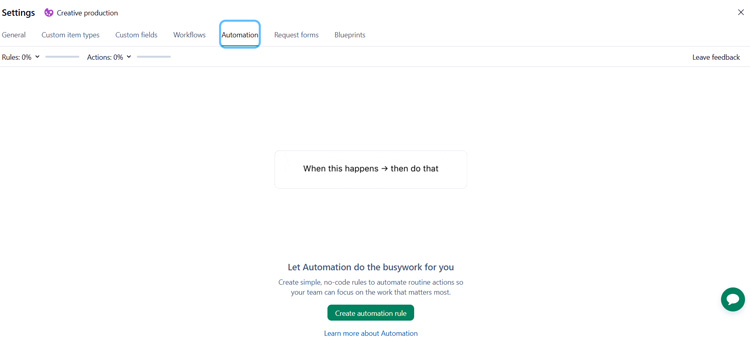
Automations are another one of Wrike’s big wins. The template center with recommendations for your project plus AI suggestions made it super simple to create custom automations with dropdown fields. I especially liked the automations for third-party apps like running a campaign with constant contact or adding an entry in Google Calendar. I loved the custom form builder where you can auto-create tasks from request forms.
Time tracking directly in the card is perfect for creating task estimates, managing workloads and billing clients. Bonus points for the timelog view with approval status, comments and a Quickbooks integration.
On the collaboration front, you can filter notifications and view all comments in the inbox or stream. However, a miss for me is that there is no native direct or group messenger. Instead, it integrates with teams. Unfortunately, the cheapest plan has hardly any automation capabilities, and if you want to move from Team to Business, you’ll have to shell out over double the cost per user.
Overall, if you’re looking for a powerful solution with top-notch functionality that can be personalized to your processes and you have the budget for higher pricing tiers, then Wrike is for you.
Key Features
- Multiple Views: Zoom out to see the full view of a project’s tasks, dependencies, timeline and scope. Switch between Gantt, Kanban, timeline, list and spreadsheet views. The drag-and-drop interface makes it easy to adjust task dates and add dependencies. It’s also easy to toggle between different views (day, week, month, etc.).
- Task Management: Wrike brings together all aspects of your project — tasks, schedules and team communications — into a single location for more efficient project management. The platform connects with Gmail, Apple Mail and Outlook, allowing you to manage tasks directly from your inbox. It also supports data transfers for users switching from Microsoft Project, so all elements are imported for MPP, MPX and XML formats.
- Project Templates: Use a range of pre-built templates to start your team off with key elements already in place. Specific template types include agile teamwork, project scheduling, event management, product launches, Kanban projects, ticketing and helpdesk, sprint planning, and product roadmaps.
- Dashboards and Reporting: The report builder takes you through the four-stage process of creating a report, with inputs for type, source data, filters and layout (table or column). Report topics include weekly project status, unassigned tasks, active tasks by assignee and others. Monitor progress using live dashboards using custom widgets or pre-made templates to build an analytics board.
- Resources View: Improve resource management with effort allocation based on basic, daily or flexible effort tracking. Access a visual, intuitive interface that facilitates workload planning and changes, providing full visibility into team performance. You can also customize resource utilization analytics tools to track KPIs for better insight.
- Proofing: Streamline feedback processes and review cycles with visual tools and a centralized system that keeps version control in check. You can assign approvers internally as well as invite external reviewers. The software also connects with Adobe Creative Cloud tools, letting creatives review feedback and make updates from the app they work in. Note, this feature is only available for users with Business, Enterprise or Pinnacle plans.
- Wrike Lock: Wrike provides cloud security and privacy with encryption keys for Enterprise and Pinnacle plans. Both your data and the keys are encrypted, letting you determine who can access and edit the information stored on the platform. You have full control over the individual keys via a master key that’s stored by the Key Management Service from AWS.
- Wrike Publish: Enable digital asset management (DAM) with Business Plus, Enterprise and Pinnacle plans. Integrations with DAM platforms provide a range of capabilities, including stakeholder collaboration and file proofing. You can also attach files to tasks, quickly search your workspace for the right asset and gain brand consistency across campaigns.
See It In Action: Create Custom Automations


Limitations
- Desktop app lags occasionally.
- Limited features with the free plan.
- Learning curve.
Cost of Ownership
Training Resources
- Wrike Community: Search through community topics, share posts and sign-up for expert-led live sessions.
- Wrike Discover: Sign up for self-paced courses and certifications using Wrike’s free online training platform.
- Help Center: Learn the basics and search through community responses and articles for answers.
Compare Project Management Software
Head-to-Head
Comparison
vs
- 5pm
- AdaptiveWork
- Adobe Workfront
- Airtable
- Asana
- Avaza
- Backlog
- Basecamp
- Celoxis
- Cerebro
- Clarity PPM
- ClickUp
- Cora PPM
- Daptiv
- Freedcamp
- GanttProject
- Hive
- Jira
- LiquidPlanner
- MeisterTask
- Micro Focus
- Microsoft Project
- monday.com
- nTask
- OpenProject
- Paymo
- Planisware
- Planview
- Podio
- Primavera P6
- Project Insight
- Projectlibre
- ProjectManager
- Projecto
- ProofHub
- Quickbase
- Redmine
- SAP PPM
- Sciforma
- ServiceNow SPM
- Smartsheet
- TaskRay
- Teamwork
- Trello
- Wimi
- WorkflowMax
- WorkOtter
- YouTrack
- Zenkit
- Zoho Projects
Awards
SelectHub research analysts have evaluated Wrike and concluded it deserves the award for the Best Overall Project Management Software available today and earns best-in-class honors for Platform Features, Project Planning and Scheduling, Time Tracking and Management and Platform Security.
Relevant Articles
Pricing for Project Management Software

Similar Products
Here are the most similar products to Wrike.




Christina George

Dianna Dragonetti